GTA 6 Best Aim Settings: Fix Slow, Floaty Aiming on PS5 and Xbox
Quick answer
Set Targeting to Partial (Settings, GAMEPLAY tab, COMBAT), raise Look Acceleration and Aim Acceleration to 10 to 14 on the CONTROLLER tab, pick the Linear or Precision Aim Response Curve and lower your stick deadzones. Those four changes do most of the work. Change one at a time and test each.
On this page
| Targeting and assists | Settings > GAMEPLAY > COMBAT |
|---|---|
| Sensitivity, acceleration, curve | Settings > CONTROLLER |
| Sensitivity and acceleration sliders | 0 to 14, all at 7 in our capture |
| Look / Aim Acceleration | Try 10 to 14 |
| Aim Response Curve | Linear or Precision |
| Deadzones | Default about 4, try 1 or 2 if no drift |
Why GTA 6 aiming feels slow
- Sensitivity starts in the middle, acceleration holds the camera back before it hits full speed, and the stick deadzones are fairly wide. Together they make the reticle feel a beat late.
- The console version runs at 30 FPS, which makes any delay feel worse. Nothing is broken, and almost all of it can be changed in Settings.
- Settings is split into tabs you switch with L1/R1 on PS5 or LB/RB on Xbox: CONTROL SCHEME, CONTROLLER, GAMEPLAY, DISPLAY, UI, CAMERA, AUDIO and more. The options are the same on both consoles.
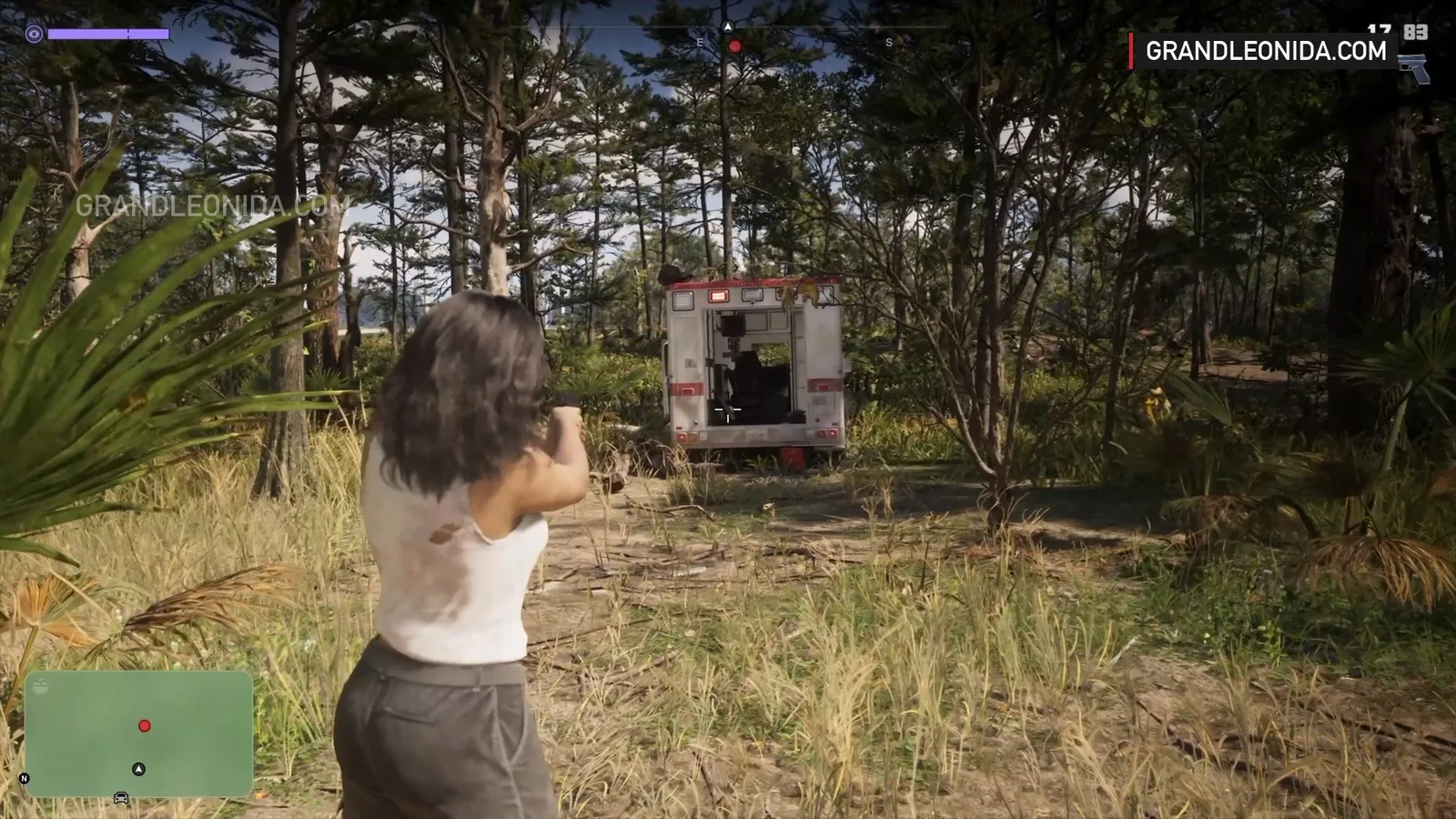
Targeting and combat assists
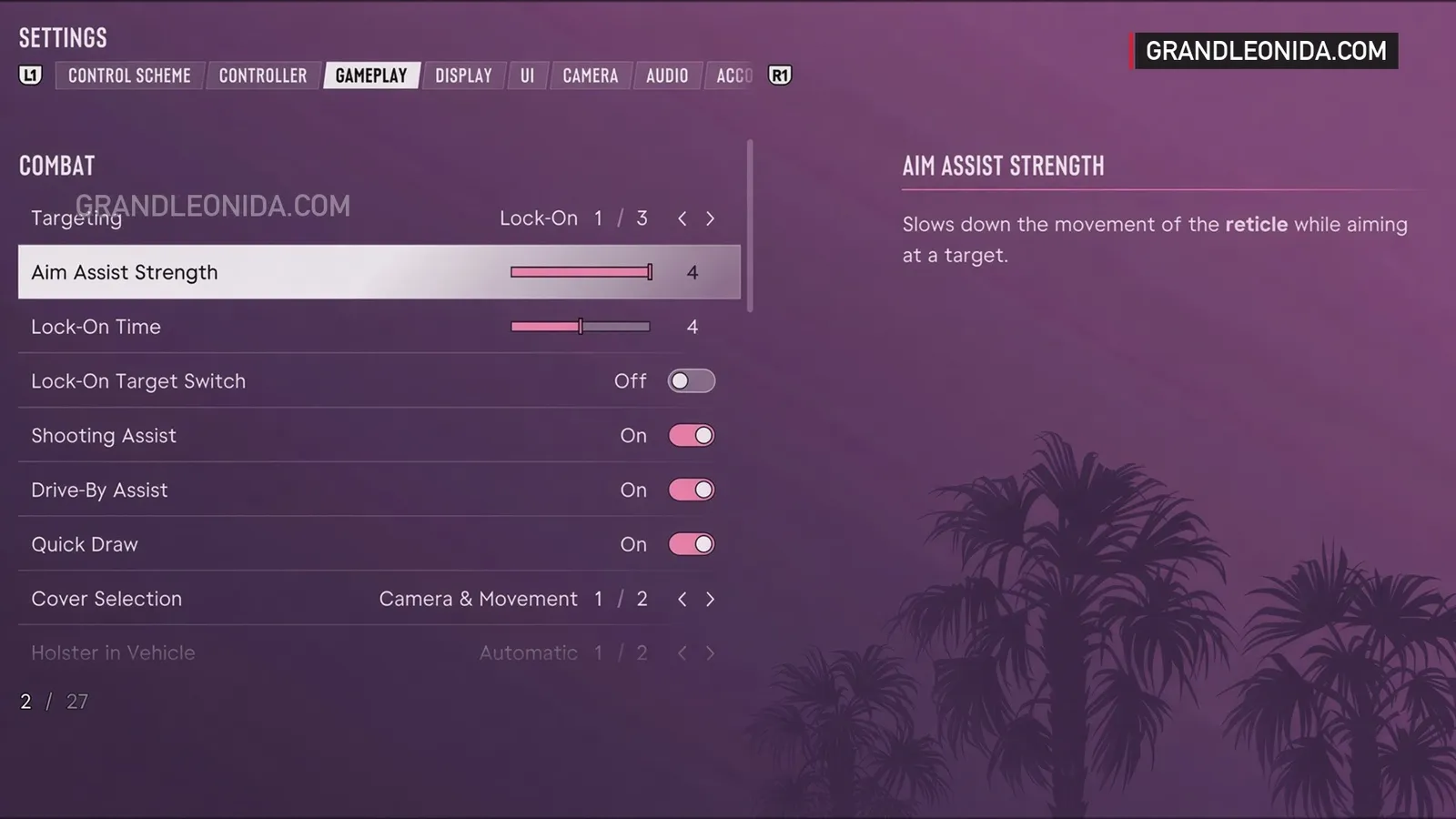
- Open Settings, switch to the GAMEPLAY tab and look under COMBAT. Targeting is the first option, and no other setting changes the feel of aiming as much.
- Targeting has three modes: Lock-On, Partial and Free Aim. Partial is the best start for most players because it only pulls gently toward targets. Our capture shows Lock-On, option 1 of 3.
- Aim Assist Strength makes the reticle drag a little when it passes over an enemy. With Partial, 3 to 4 helps you follow someone who is moving without the aim feeling glued. Lower it toward 0 only if you switch to Free Aim.
- Shooting Assist: keep it On for close-range tracking.
- Drive-By Assist: keep it On too. Hardly anyone turns it off, because shooting from a car without it is rough.
- Quick Draw: turn it On to raise your weapon faster.
- Movement Speed: change it from Walk. The default pace makes moving between cover in a gunfight feel slow.
- The COMBAT list also holds Lock-On Time, Lock-On Target Switch, Cover Selection and Holster in Vehicle. In our capture Lock-On Time is 4, Lock-On Target Switch is Off and Cover Selection is Camera & Movement.
Look and Aim Sensitivity
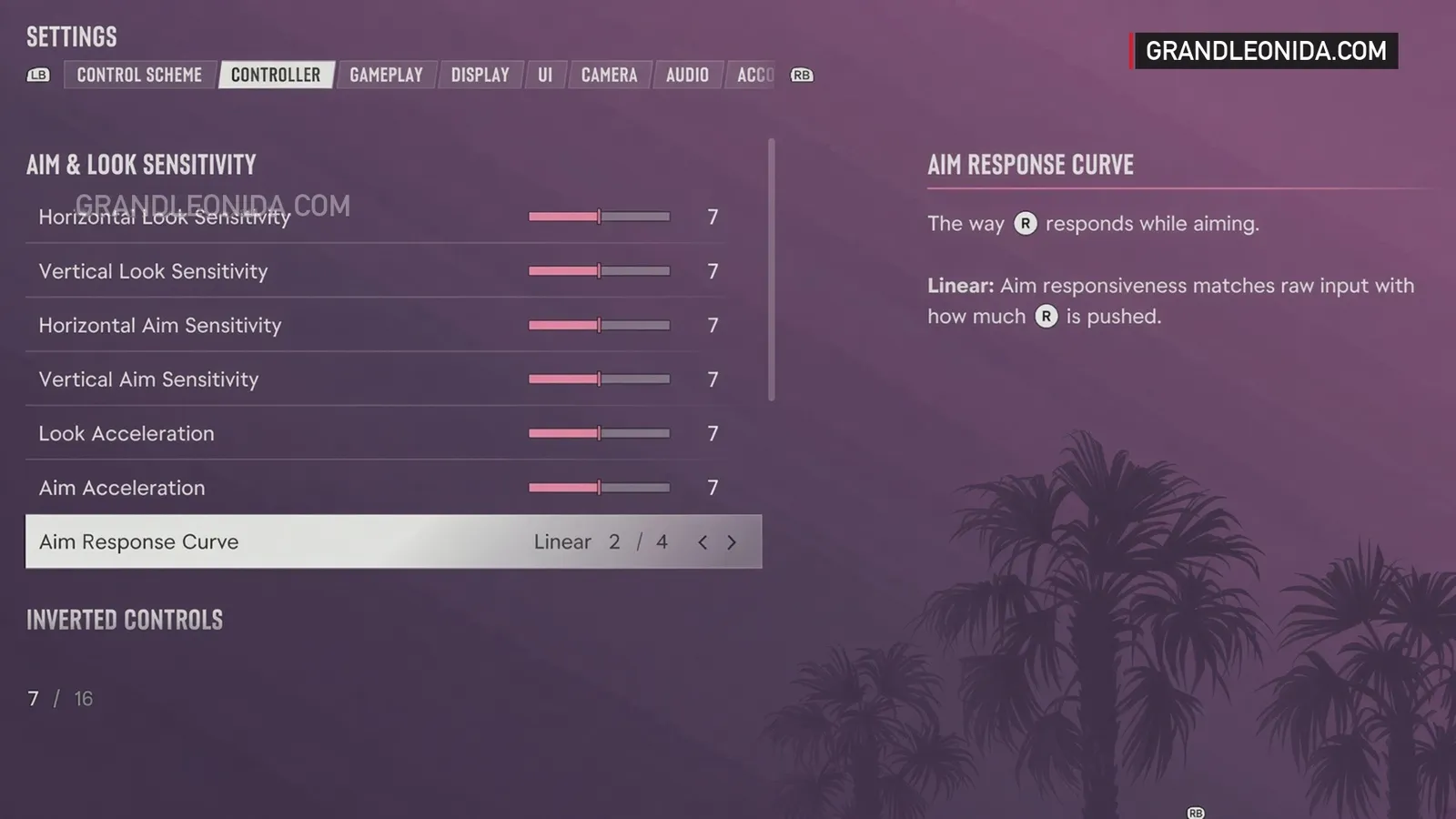
- Open the CONTROLLER tab. Under AIM & LOOK SENSITIVITY there are separate Horizontal and Vertical sliders for Look and for Aim. They run from 0 to 14 and all sat at 7 in our capture.
- Look Sensitivity is how fast the free camera turns. If spinning around feels slow, try 8 to 12.
- Aim Sensitivity is the speed while aiming down sights. Around 3 to 5 suits small, careful corrections on headshots. Higher, up to 14, helps you swap targets fast. Not sure? Start in the middle and move whichever way feels better.
Look and Aim Acceleration
- Look Acceleration and Aim Acceleration set how quickly the camera builds up to its top turning speed. Both sat at 7 in our capture.
- If turns take a moment to get going, try 10 to 14.
- If you have to push the stick a fair way before anything moves at all, the deadzone is the problem, not acceleration.
Aim Response Curve
- Aim Response Curve sits right under the acceleration sliders. It decides how far the reticle moves for small and large pushes of the right stick. There are four curves.
- Linear: movement matches how far you push the stick. The in-game text reads: Aim responsiveness matches raw input with how much R is pushed. It works very well with high acceleration.
- Precision: slow for small movements and fast at full tilt. The choice if you're going for headshots.
- Standard: the safe middle option.
- Aggressive: quick across the whole range, but easy to overshoot.
Deadzones
- The deadzone is how far a stick has to move before the game registers it. The default of about 4 leaves a dead spot that feels like input lag.
- If your sticks don't drift, lower it to 1 or 2, or even 0 for the right stick, and the camera reacts instantly.
- If the camera or your character moves while you aren't touching the sticks, your controller has drift. Raise the deadzone just until the movement stops.
Starting points by playstyle
- Casual: lean on the assists and spend less time fighting the sticks.
- Balanced: responsive, but still forgiving.
- Precision: most of the help removed, for players who want every hit to be their own.
- None of them is wrong. The right setup is the one you stop wanting to change.
Display and hardware tweaks
- Motion Blur Intensity (DISPLAY tab): lower it for a steadier picture around the reticle. Our motion blur and 30 FPS guide raises it to smooth camera pans instead, so pick what matters more to you.
- Turn off Camera Shake and reduce Camera Bob so the reticle stays steady in a fight.
- Use a wired controller and turn on your TV's Game Mode to cut input lag. If the picture also looks washed out, see our HDR and HGiG guide.
- Very low deadzones only work on a stick that doesn't drift, so clean or replace a worn one.
How to tune it yourself
- Press Restore Default so you start from a clean slate.
- Raise acceleration and lower the deadzones first. If aiming feels sluggish, those two matter most.
- Change only one setting at a time, then try it twice: on a calm street first, then in an actual gunfight.
- A fresh save is safest, so test fights don't affect your criminal profile.
- Give each change a few minutes before moving on. Muscle memory takes time to adjust.
- While you're dialing things in, click L3 and R3 together for Focus to highlight enemies. More button tricks are in our controls and shortcuts guide.
Put your new aim to the test
- Grab some free early weapons and try your settings on real targets.
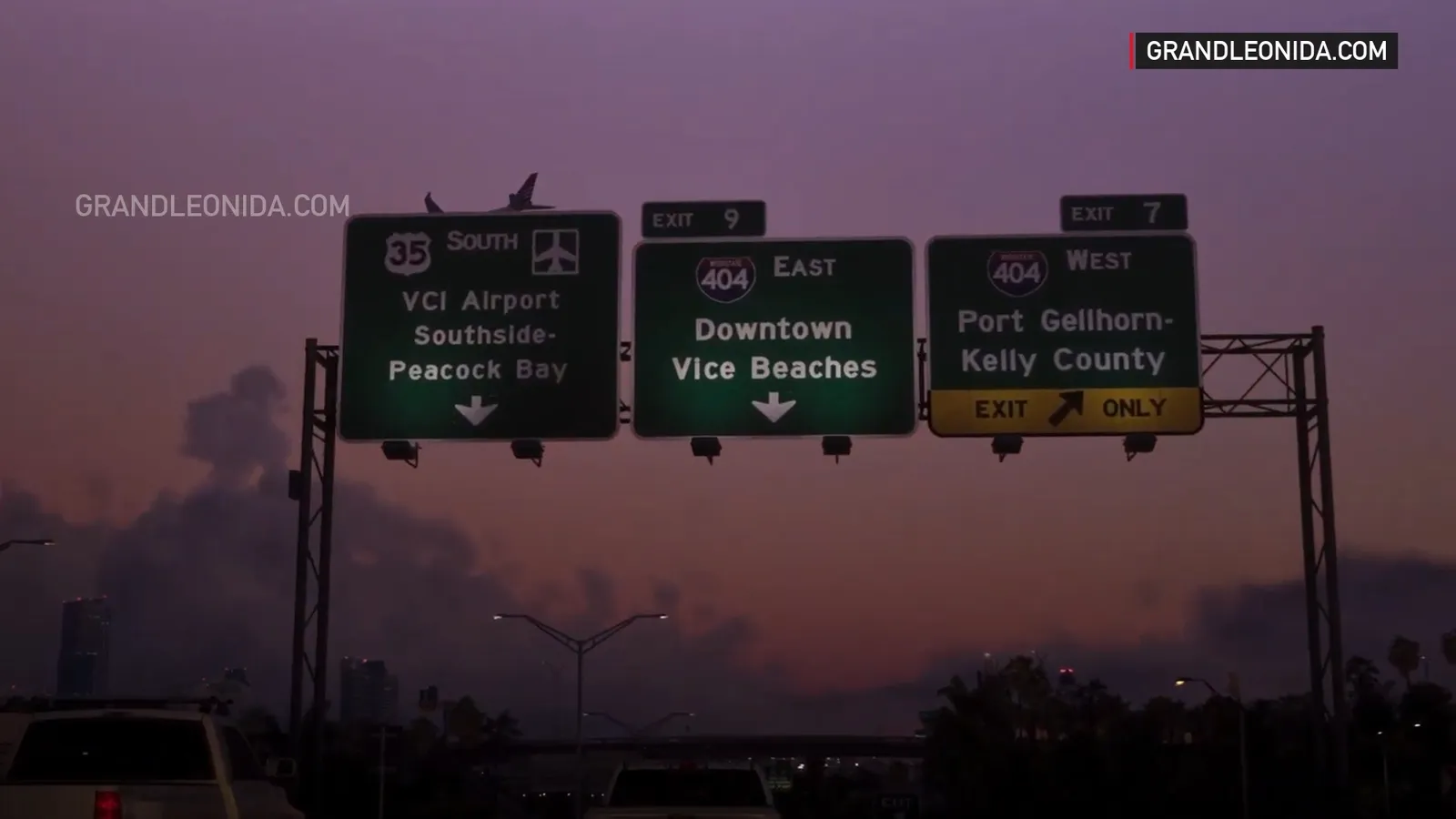
- Then read our wanted system guide to survive the fights you start, whether in Vice City, Port Gellhorn or Kelly County.
Frequently asked questions
What are the best aim settings in GTA 6?
A good start is Targeting on Partial, Aim Assist Strength around 3 to 4, Look and Aim Acceleration at 10 to 14, a Linear or Precision Aim Response Curve, and deadzones at 1 or 2 if your sticks don't drift.
Why does aiming feel so slow in GTA 6?
Sensitivity starts mid-range, acceleration is baked in and the deadzones are wide-ish, and consoles run the game at 30 FPS. Together they make the reticle feel sluggish.
Where are the aim settings in GTA 6?
Targeting and the combat assists are in Settings, GAMEPLAY tab, COMBAT section. Sensitivity, acceleration and the Aim Response Curve are on the CONTROLLER tab.
What deadzone should I use in GTA 6?
The default is about 4. If your controller doesn't drift, try 1 or 2, or 0 on the right stick. If the camera moves on its own, raise it until that stops.
Which aim response curve is best in GTA 6?
Linear pairs well with high acceleration, and Precision suits headshot-focused players. Standard is the middle ground, and Aggressive is fast but easy to overshoot with.
Related
GTA 6 Controls and Shortcuts You Probably Missed
Useful GTA 6 controls most players miss: GPS from the nearby list, the vehicle quick menu, swapping to your last weapon, sleeping and recovering missed hints.
GTA 6 at 30fps Feels Choppy? Try Raising Motion Blur
GTA 6 is locked to 30fps on every console. Raising Motion Blur Intensity in Settings > Display can make camera movement feel smoother. Here's where to find it.
GTA 6 Looks Washed Out? Turn On HGiG and Check Your TV HDR Settings
If GTA 6 looks washed out on your TV, double tone mapping may be why. How to turn on HGiG, the HDR calibration order and the settings to check.
GTA 6 Focus Ability Explained: How to Use It and Extend the Bar
How Focus works in GTA 6 (L3 + R3): slowed time, lethal and non-lethal zones, hidden items, and the activities and drinks reported to extend the bar.