How to Turn On Auto-Drive in GTA 6 (Cinematic Mode Steps)
Last verified By the Grand Leonida Editorial Team
Quick answer
Set a waypoint, get in a vehicle, hold Down on the d-pad, press Options to choose Cinematic view, then hold Circle (B on Xbox). Your character drives to the waypoint. Use R2 and L2 (RT and LT) to change speed.
| Start | Waypoint, vehicle, hold d-pad Down, Options for Cinematic, hold Circle / B |
|---|---|
| Faster / slower | R2 / L2 (RT / LT) |
| Stop | Hold d-pad Down, or press Circle to remove the destination |
| Works on | Cars and boats |
| Tutorial | None: the game never tells you |
Steps to turn on auto-drive
- Open the map and set a waypoint on a road (or on water if you are in a boat).
- Get in a vehicle and start driving.
- Hold Down on the d-pad to bring up the camera options in the bottom-right corner.
- While holding it, press Options (Menu on Xbox) to switch to Cinematic view.
- Now hold Circle (B on Xbox). Jason or Lucia starts driving to your waypoint.
Controls while it is on
- R2 (RT): speed up.
- L2 (LT): slow down.
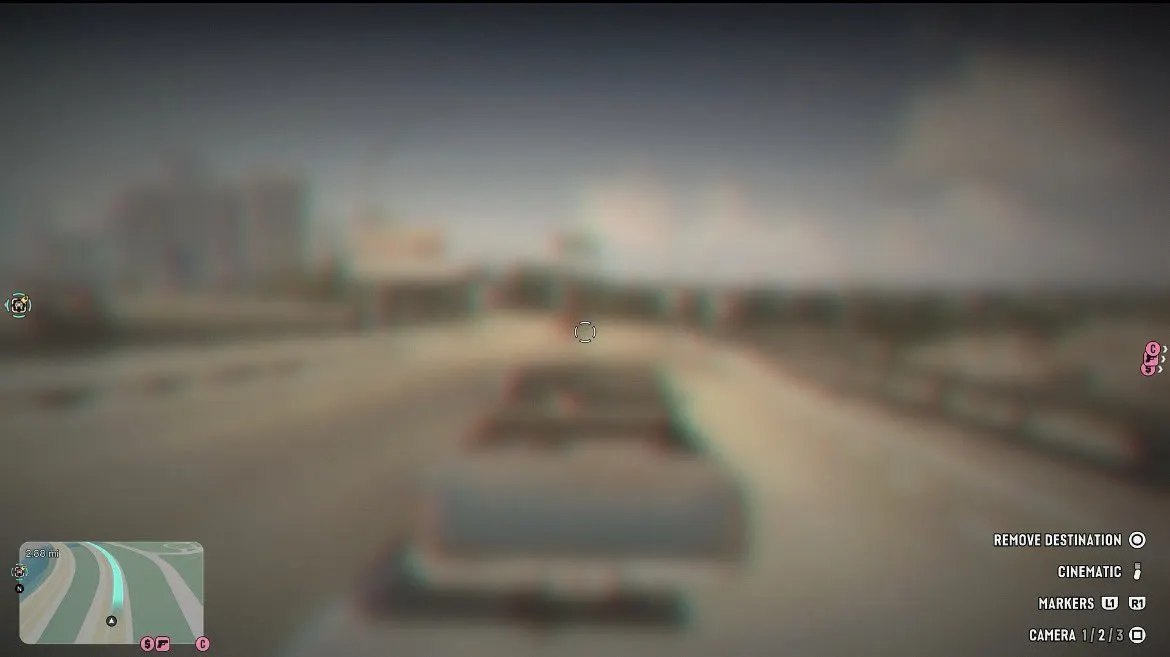
- To stop, hold Down on the d-pad again, or press Circle, which the screen labels Remove Destination.
What to know
- The driver mostly follows the rules of the road, so it is scenic and safe but not fast.
- You can still get stuck in traffic or held up by crashes.
- It works on boats too, but only through navigable water: if the waypoint is on land, auto-drive switches off where the water ends.
- Cinematic view uses changing side, eagle-eye and front angles, which makes steering by hand hard.
Our screenshots
In-game screenshots from our own playthrough.
Frequently asked questions
How do I make the car drive itself in GTA 6?
Set a waypoint, hold Down on the d-pad, press Options to choose Cinematic, then hold Circle (B on Xbox).
How do I stop auto-drive?
Hold Down on the d-pad, or press Circle to remove the destination.
Does auto-drive work on boats?
Yes, but only on water you can sail. If the waypoint is on land it switches off when the water ends.